Tuning Orbitals
Overview
Calibrating a guardrail means changing it and sending the same message again. In the studio you change orbitals from their cards and from the drawer: settings, order, on and off, and which of chatomon's own orbitals are in the chain. Every change takes effect from the next turn and lives in the studio session; your code is never written. Back to Code explains how to take the result with you.
What the Studio Can Change
The studio reads an orbital's settings from its constructor: an argument that takes a plain value (a number, text, a choice, a list of orbital names) is a setting, an argument that takes a value made of plain fields, such as a connection or a service description, is a block, and an argument that takes any other object, such as a client you configured or a connector, comes from your code and stays as it is.
| Orbital | Settings | On, off and order | Delete |
|---|---|---|---|
| chatomon's own, defined in your code | Plain values and blocks are edited; objects stay as in your code | Yes | No: turn it off |
@orbital functions and classes you wrote |
Read-only, with the reason | Yes | No: turn it off |
| Added in the studio | Edited, name included | Yes | Yes, with Undo |
chatomon's own orbitals are those of chatomon.orbitals and chatomon.orbitals.principled: MessageLengthOrbital, TurnLimitOrbital, JudgeOrbital, ScopeGuardOrbital and ClaimExtractorOrbital. A class of yours that inherits from one of them counts as your own.
Editing a Setting
Clicking an orbital opens its card, with one field per setting. A field is applied when you leave it or press Enter; a choice or a switch is applied at once. In a text field Shift+Enter starts a new line. The fingerprint at the bottom of the card changes with every accepted setting, and a field that differs from your code is marked as changed.
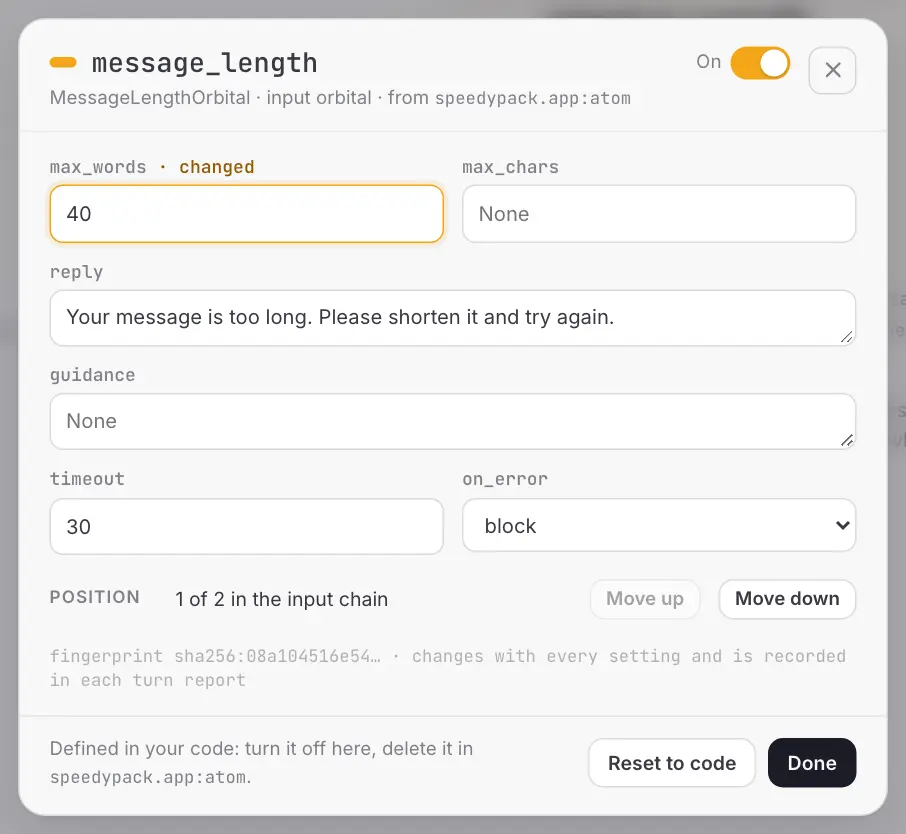
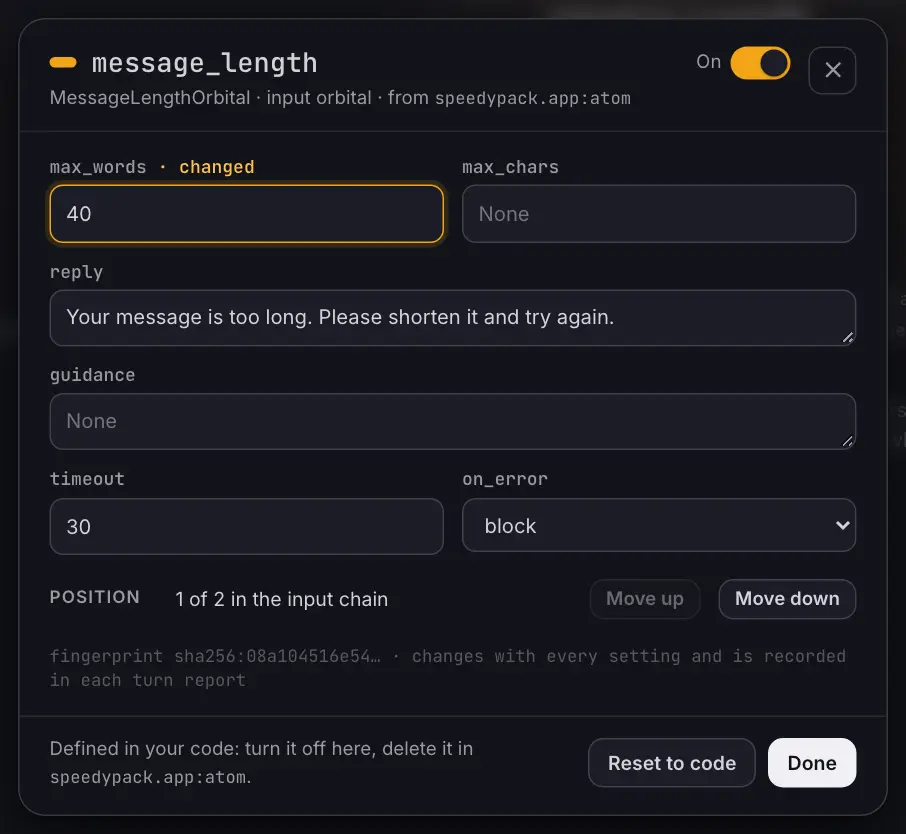
A value the orbital does not accept is refused: the message appears under the field, which keeps what you typed, and the session stays as it was. If you close the card before the answer arrives, the message appears at the bottom of the page instead. The message is the orbital's own, the one its constructor raises in your code, for example set max_words, max_chars or both. When two settings depend on each other, change them in the order the message suggests: to lower max_turns below warn_before, lower warn_before first.
Arguments that are objects are listed as from code, with the name of the variable that holds them when the studio finds it in the atom's module. Change them in your code.
Two details are worth knowing:
- A judge's
contextis edited as text. While you leave it alone, the judge keeps theKnowledgeobject from your code; once you change it, the judge has its own text and no longer follows the atom's knowledge. - An orbital that your code puts in both chains is one orbital. A change to its settings applies to both sides; its switch and its position are per chain.
- A setting whose name ends in
_envholds the name of an environment variable. It is a one-line field: the name is what you type, what is saved and what is written to code, and the value stays on the server.
Blocks
Some arguments take a value that has fields of its own: the ApiBackend that says where a service answers, or the service description of a ScopeGuard. The studio reads the fields from the type itself and shows the argument as a block.
| In a block | Is edited as |
|---|---|
| A text | A text field |
The name of an environment variable: a field whose name ends in _env |
A one-line field. The name is what you type, what is saved and what is written to code; the value stays on the server |
| A list of texts | A text field, one entry per line |
| A list of entries with fields of their own, such as the trigger and the response of a predefined response | One group of fields per entry, added and removed with its buttons. Where the type allows it, an entry can also be a plain sentence. A list of entries inside an entry is not edited: it stays as your code gives it |
When an argument accepts more than one form, given as chooses among them: a description is one text, or one of the description types with its components. Every type the argument accepts is listed, and the orbital has the last word: a ScopeGuard V2 given a V1 description refuses it with its own message.
A block is applied whole, when the focus leaves it or on Enter; where a list is written one entry per line, Enter starts the next entry instead. Until then the block is marked as not applied. A block the orbital refuses keeps what you typed, with the message under it.
A block read from your code keeps what it does not show. A component your code gives as one text is shown as its lines and stays that text until you change that component. A value the studio cannot show field by field, such as a client you configured, stays from code like any other object.
Changing the Order
Drag an orbital by its grip to another place in the same chain, or open its card and use Move up and Move down, which also work from the keyboard and on a phone. An order the atom would not accept, such as an orbital placed before one whose annotations it reads, is refused with the reason.
Adding and Deleting
Add, next to each chain, lists the orbitals that can be built from plain values and blocks: JudgeOrbital, MessageLengthOrbital and TurnLimitOrbital, and with the principled extra installed ScopeGuardOrbital and ClaimExtractorOrbital, each on the sides it supports. Without the extra, the list says which one to install. Orbitals that need a function, or a client you configure yourself, are added in your code.
Choosing one opens a form with its name and its settings. The name is proposed and can be changed: lowercase letters, digits, _, - and ., unique in the atom. Settings without a default, such as a judge's model and instructions, must be filled in; nothing is created until Add is accepted. A judge added in the studio calls its model through the atom's connector, so model is an identifier in that connector's format.
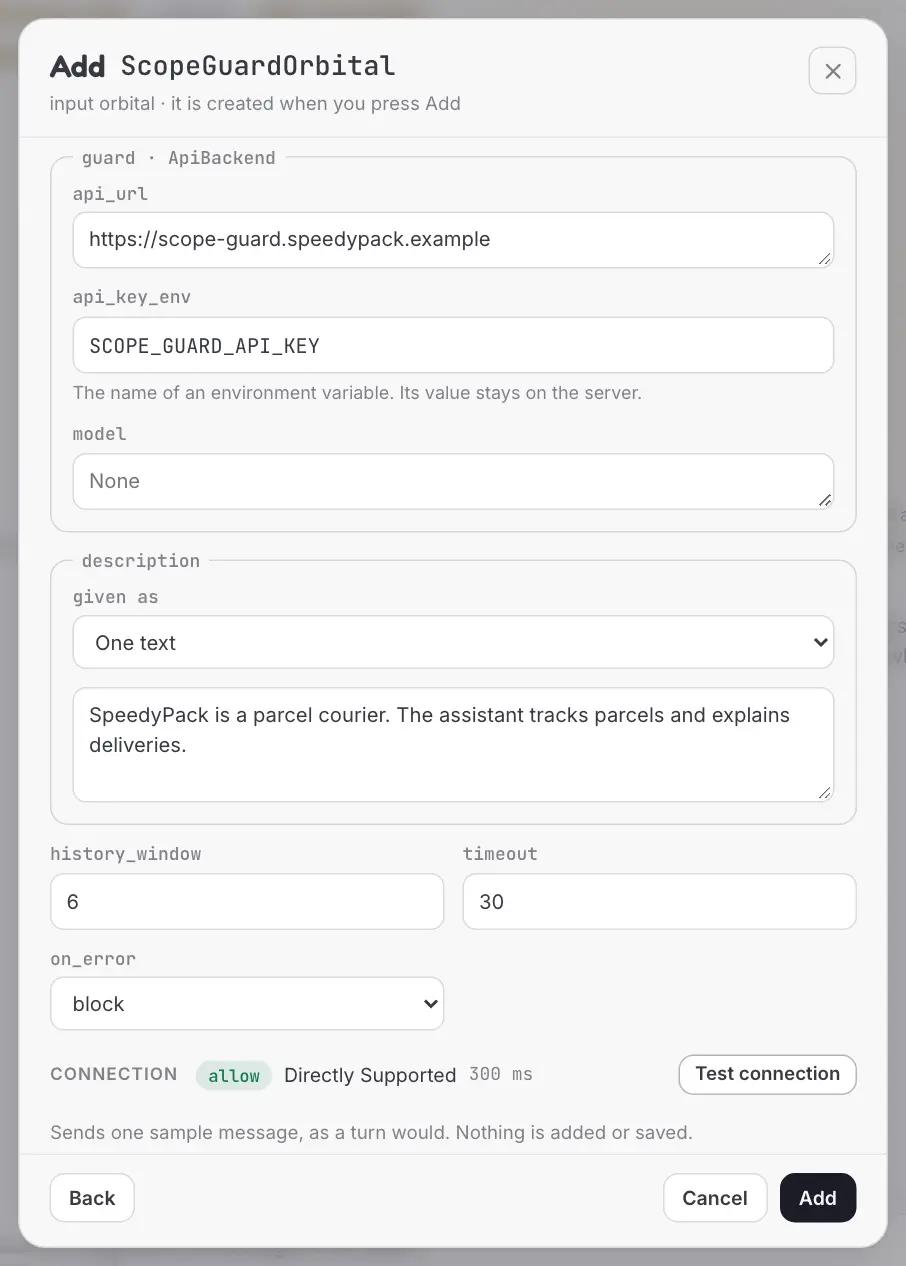
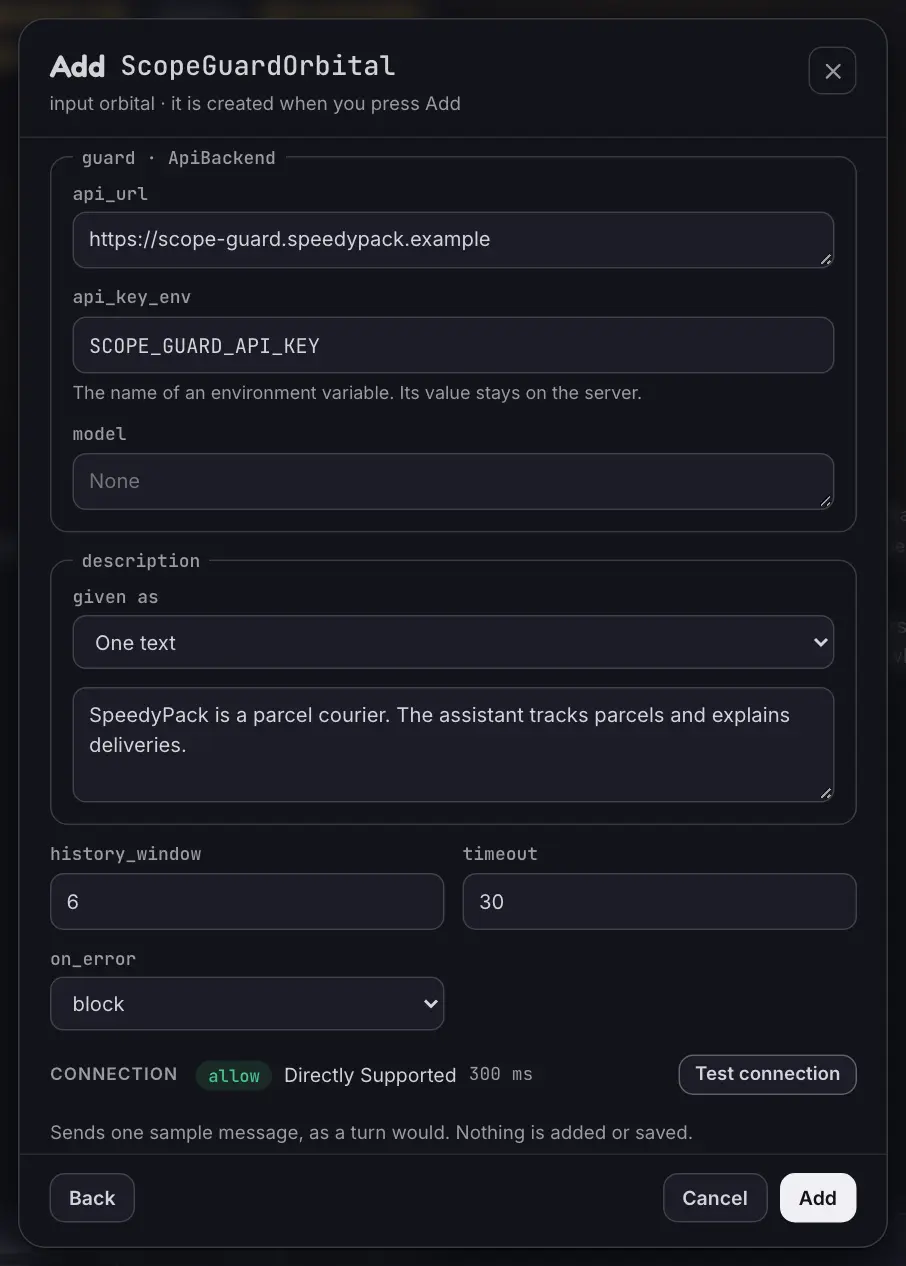
A ScopeGuard or a ClaimExtractor is added with an ApiBackend: the address of the service and, when the service asks for a key, the name of the variable that holds it. The variable must be set in the environment the studio was started in; when it is not, the form refuses with the name of the variable, and nothing is created. What an ApiBackend does not cover, such as a local backend, a headers provider or a mapping, is given in your code: see Principled Intelligence Orbitals.
While the studio listens on a network address, the page cannot say where an orbital connects: these orbitals are not offered, a connection of an orbital that is there cannot be changed, and a preset that sets one is refused in the import card. A connection is then set in your code, or in a preset given when the studio starts. An orbital that is there can still be tested.
An added orbital goes at the end of its chain, can be renamed from its card, and can be deleted from the card or from its row in the drawer. Deleting offers Undo. Orbitals defined in your code cannot be deleted or renamed here: turn them off instead.
Testing a Connection
The add form and the card of every orbital that calls a model have Test connection. It runs one check of that orbital on a sample message the studio writes, within the orbital's own timeout, and shows how it went. In the add form it tests the orbital as the form has it, before anything is added. In a card it tests the orbital as it is, also when it comes from your code or is off; a block that is edited and not applied is applied first.
| Outcome | What it means |
|---|---|
The action, the reason and the time, such as allow · Chit Chat · 412 ms |
The service answered |
The connection was refused. or The address was not found. |
Nothing answers at that address |
The service answered 401. and the like |
The service refused the request, with a status of 400 or more: check the key for 401 and 403, the address for 404 |
No answer within 30 s. |
The service did not answer within the orbital's timeout, as when it is still starting |
The client stopped waiting before the orbital's timeout of 30 s. |
The client has a shorter timeout of its own, and it ran out first |
The check failed with … |
Anything else, named by the kind of error: an answer the client could not read, for example |
A test is refused before it starts when the orbital cannot be built, because a value is missing or the variable it names is not set, and for an orbital that reads the annotations of other orbitals, which can only be tried in a turn.
A test is not a turn: it is not in the conversation, it has no report, and nothing of it is saved. It is a real call, though, so a judge's test calls its model. The sentences are the studio's own: the text of an error raised by a service's client is never shown here, because it can quote the request it made.
Changes Against the Code
The foot of the drawer counts how the session differs from your code and lists the differences: an orbital turned off, a setting changed, an orbital added, a chain in another order. A dot marks every orbital that was added, turned off or edited, and another marks the Atom button in the header.
Reset to code in the drawer goes back to the atom as your code defines it. The same button in a card resets that orbital alone: its settings and its switch, not its position. Both offer Undo, as deleting an orbital and importing a preset do: in the message at the bottom of the page for a few seconds, and at the foot of the drawer until the next change.
Stopping the studio discards the session. To keep what you tuned, copy it as code or export a preset first.
Key Components
| Component | Location | Purpose |
|---|---|---|
Orbital |
src/chatomon/orbitals/base.py |
The constructor arguments the studio reads as settings; config() and fingerprint() shown in the cards |
ApiBackend |
src/chatomon/orbitals/principled.py |
The connection to a service as plain values, which the studio edits as a block |
Atom.validate |
src/chatomon/atom.py |
The chain rules a change must keep: unique names, reads pointing backwards, supported sides |
Related Documentation
- Reading the Screen — the drawer, the stage and the turn reports
- Back to Code — Copy as code and presets
- Orbitals — chaining,
readsand the settings every orbital has - JudgeOrbital, Limits and Principled Intelligence Orbitals — the orbitals that can be added from the studio
Last Updated: October 2026 Status: Implemented