Studio
Overview

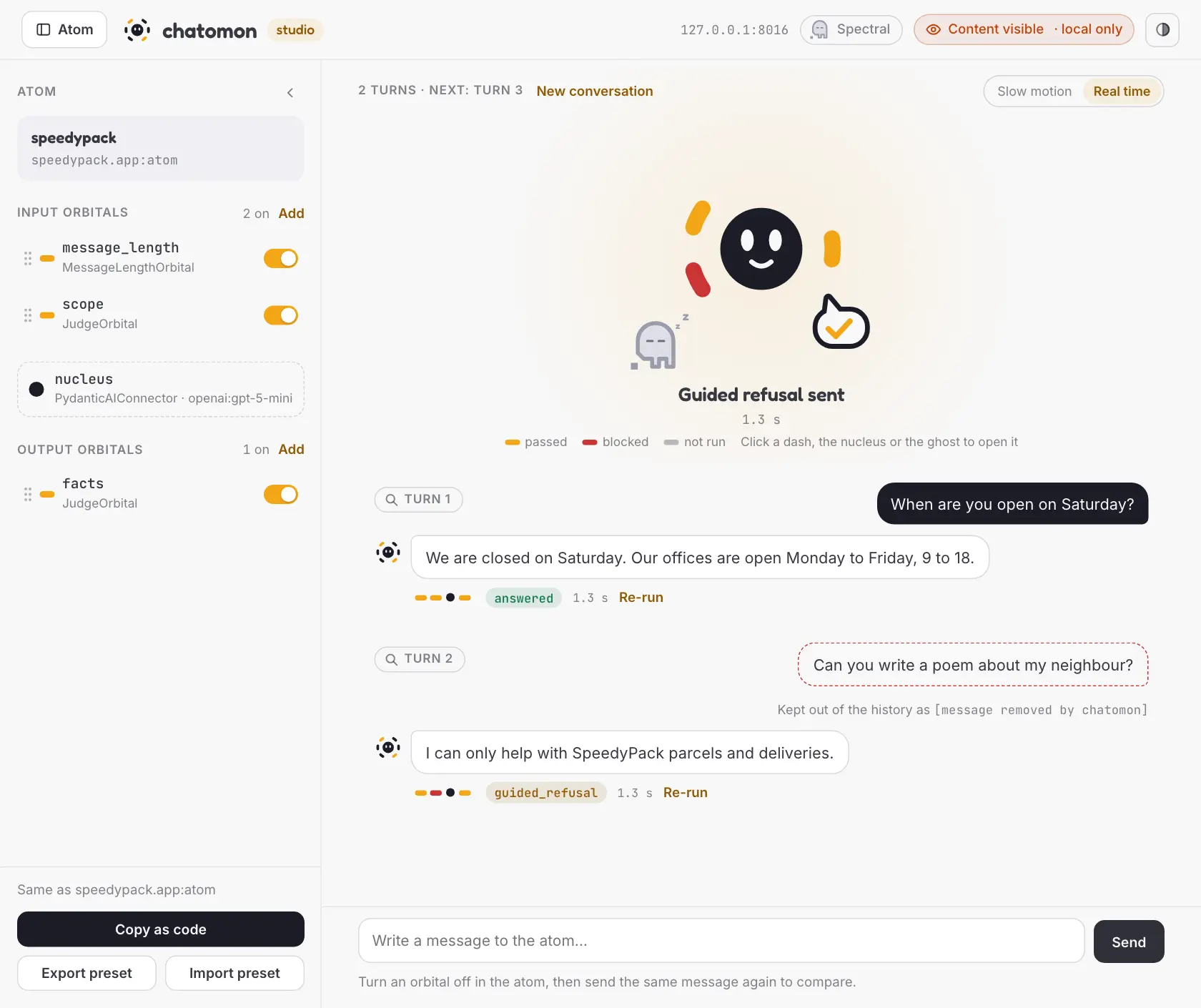
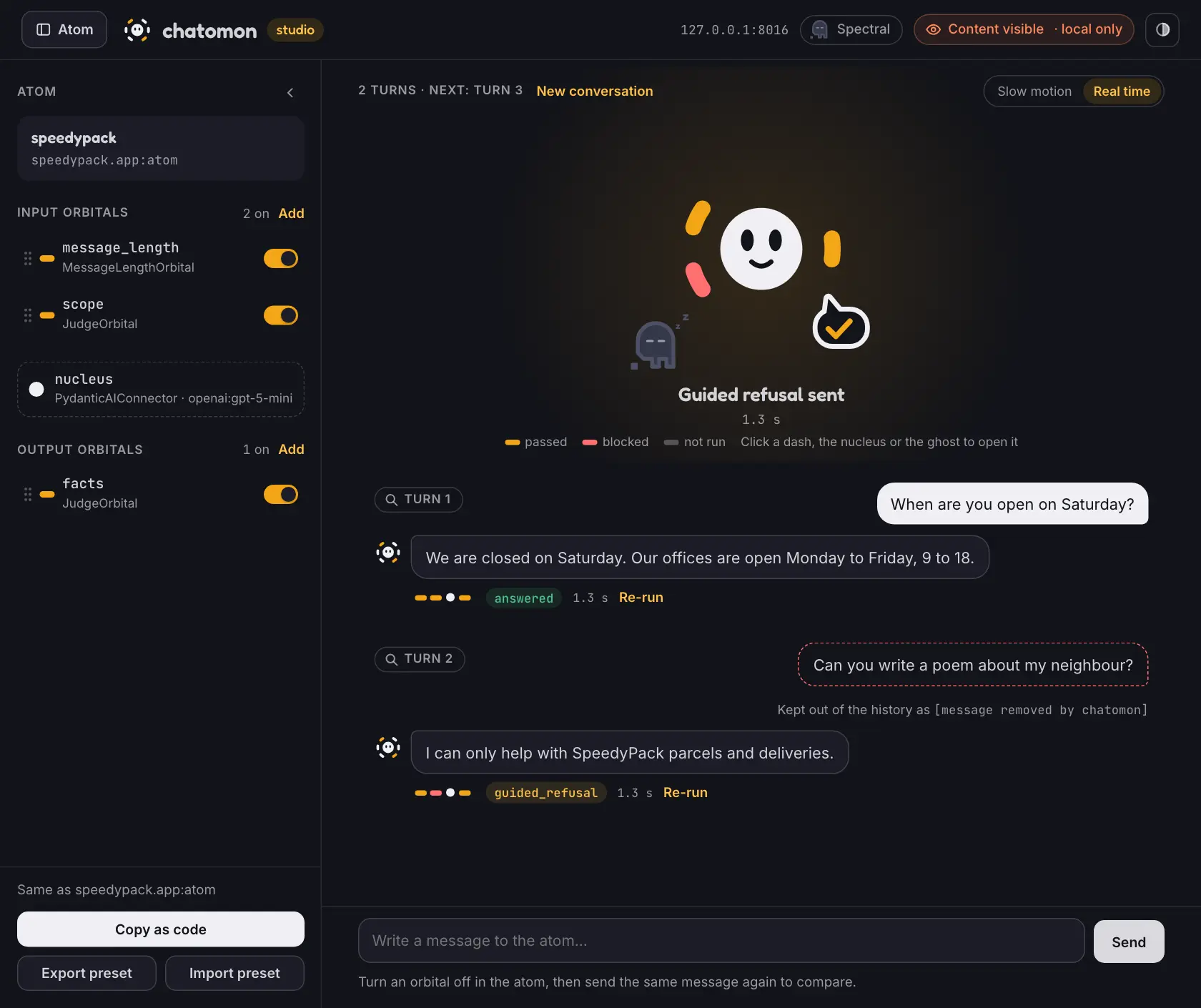
 The studio is a local web page for trying an atom before it goes anywhere. You chat with it, watch each orbital decide while the turn runs, tune the orbitals until they behave, and take the result back to your code. It is a development tool: the atom stays in your code, the studio never changes your code, and it is not meant to be deployed or to serve users.
Key Features
- Live turns — the atom on stage shows every orbital deciding, and each turn keeps its report.
- Tuning — switch orbitals on and off, change their settings, reorder them and add chatomon's own orbitals. Changes live in the studio session.
- Connections — an orbital that calls a service is added with the address of the service and the name of the variable that holds its key, and tried with Test connection before a message is sent.
- Back to code — the tuned orbitals as Python to paste into your atom, or as a preset file to load again later.
- Reload — after a change to your code the atom is loaded again without a restart, and the session keeps your orbital changes and the conversation.
- Tests — a turn, or the conversation up to it, saved as a pytest file that runs against the atom from your code. A reply that an output orbital stopped is repeated in the test, which checks what the orbital decides on it.
- Every framework — an atom built with any of chatomon's connectors opens the same way.
- Evaluation at scale — with the
spectraladd-on, the atom you are tuning answers an evaluation run on Spectral, and the studio counts what each orbital decided.
Table of Contents
| Page | What it covers |
|---|---|
| Reading the Screen | The atom drawer, the atom on stage, turns and their reports |
| Tuning Orbitals | Editing settings and blocks, changing the order, adding and deleting orbitals, testing a connection, changes against the code |
| Back to Code | Copy as code, presets and the preset format |
| Reloading the Code | What a reload keeps, what it drops, and what needs a restart |
| Saving a Turn as a Test | What a saved test checks, repeating the replies of the nucleus, offline and integration tests, where the file goes |
| Frameworks in the Studio | What changes with each connector: the conversation, the atom card, the notes at start |
| Evaluating with Spectral | The Spectral add-on: connecting the atom to a target, what happens to a request, the counts, what leaves the machine |
Installing and Starting
Install the studio extra together with the extra of the atom's framework: pip install 'chatomon[studio,pydantic-ai]', with langchain, maf, maf-foundry or adk in place of pydantic-ai for the other frameworks. Then give the command the atom's location as module:attribute:
chatomon studio speedypack.app:atom
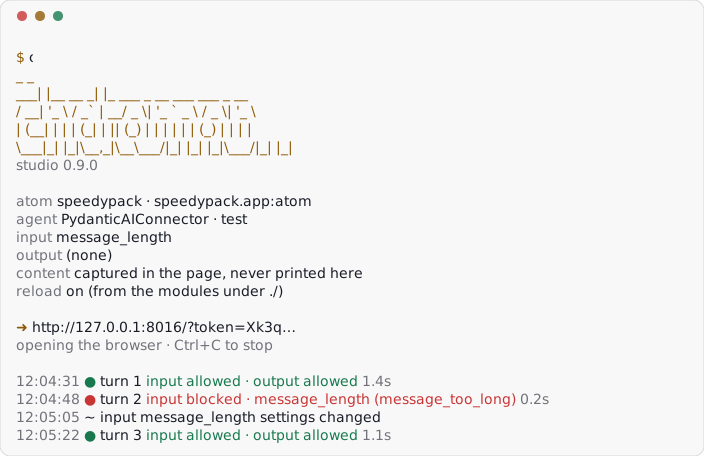
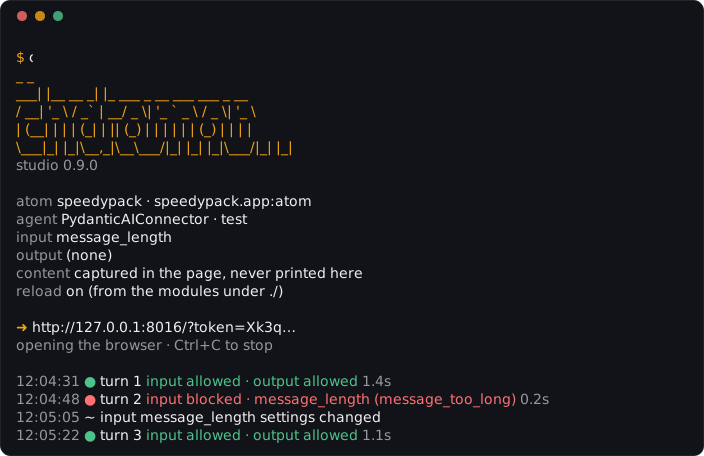
The command imports the module from the current directory, writes what it found in the terminal and opens the link in the browser. Stop it with Ctrl+C; a turn that is still waiting for its model does not hold the exit. python -m chatomon.studio takes the same arguments.
| Option | Default | Purpose |
|---|---|---|
--host |
127.0.0.1 |
The address to listen on |
--port |
8016 |
The port to listen on |
--no-browser |
off | Print the link without opening it |
--preset |
none | A preset file to apply to the atom before the page opens: see Starting with a Preset |
The spectral extra adds the Spectral add-on and brings the studio with it: pip install 'chatomon[spectral,pydantic-ai]'.
The default port is 8016 for oxygen-16, the most common oxygen atom: the "o" of chatomon is the letter the atom replaces in the wordmark.
When a function builds the atom, for example because it reads configuration or creates clients first, point at the function instead: chatomon studio speedypack.app:make_atom. The studio calls it with no arguments; a function that needs some is refused with a message that names them.
From Python, serve in chatomon.studio does the same and blocks until interrupted:
from chatomon.studio import serve

from speedypack.app import atom

serve(atom)
serve takes the options of the command as arguments: host, port, open_browser and preset, the path of a preset file. Started this way the studio does not know which module the atom comes from, which limits what Copy as code can name.
What the Terminal Shows
At start the terminal shows the chatomon wordmark and what the studio found: the atom and where it comes from, its connector and model, the orbitals of each chain, whether reload from code is on, the notes about the atom, and the link of this run.
While the studio runs, every action that succeeds writes one line: a turn, with how it ended, the orbital that stopped it and its reason, and how long it took; an orbital turned on or off, edited, moved, added, removed or reset; an undo; a preset imported; the conversation cleared; a reload, or why it failed; a test of a connection; a saved test, with its path; and, with the Spectral add-on, the connection and each request. A request the studio refuses writes nothing: the page says why.
The lines carry labels only. A message, a reply, a guidance, a judge's explanation, the text of an error in a turn and the value of a setting never reach the terminal, even though the page shows them. The one exception is a reload that fails: the terminal shows the traceback of your code, which the page never does, and the sentence the page shows.
When the output is not a terminal, or NO_COLOR is set to any value but an empty one, the wordmark and the colours are left out and the same lines are written as plain text. The link is then on the line that starts with chatomon studio is running at.
Content in the Studio
The header shows Content visible · local only, or network address when you started the studio on one; clicking the notice explains it. The studio runs a copy of your atom with capture_content="full", because showing guidance, replies and judge explanations is what it is for.
Your atom keeps its own setting. The copy also has its own turn callback and tracer: your on_turn, your tracer provider and your redactor are not called, so chatomon's reports and spans of a studio session stay in the studio.
Two things still go where your application sends them. Tracing you set up outside chatomon, such as PydanticAI's own instrumentation, records a studio turn like any other, messages included if you configured it so. chatomon's log records also follow your logging setup; they carry labels, never message text.
Model calls are real. With a real model, a turn in the studio costs what a turn costs.
Security
The studio shows conversation text and calls models with your credentials, so it protects itself in seven ways:
- It listens on
127.0.0.1, which only your machine can reach. - The link it prints carries a key for this run. The page keeps it in a cookie; opened without it, the page asks for the link from the terminal. Treat the link like a password.
- It answers only on its own address and accepts changes only from its own page, so other sites open in your browser cannot start turns or change orbitals.
- Its pages run only the studio's own files and cannot be shown inside another page.
- With
--hostand a network address it prints a warning: anyone who reaches that address with the link can read the conversation and use your models. There the page cannot say where an orbital connects: a connection is set in your code, or in a preset given when the studio starts, so the link gives no way to send a variable of that machine elsewhere. Addresses that listen everywhere, such as0.0.0.0, are refused. - With the Spectral add-on, it connects outwards to Spectral only when you ask, only when it listens on this machine, and with the key of a variable you name. The page says so for as long as the connection is open, and the terminal prints a line when it opens and when it closes: see What Leaves Your Machine.
- A key never reaches the page, a preset or generated code. A connection names the environment variable that holds its key, and the orbital reads the value on the server. Since a preset can name a variable and an address, apply only presets you trust.
Limits of This Version
- No streaming. Replies arrive whole, because output orbitals check a reply before it is sent.
- Your own orbitals are read-only. The studio edits the settings of chatomon's own orbitals.
@orbitalfunctions and orbital classes you wrote can be turned off and moved; their settings are changed in your code. - Changes live in the session. Stopping the studio discards them: copy the code first, or export a preset and start the studio with it the next time.
- Some changes need a restart. Reload from code loads your project again; installed packages, code outside the directory the command was started from, and a studio started with
serve()need the command to be started again. - An evaluation leaves counts, not conversations. With the Spectral add-on the studio counts what the orbitals decided; the conversations and their verdicts are read on Spectral: see Evaluating with Spectral.
- What a turn can rely on depends on the framework. Dependencies, runtime contexts, checkpointers, history providers and turns that wait for an answer are covered in Frameworks in the Studio; the command says what applies to your atom when it starts.
Key Components
| Component | Location | Purpose |
|---|---|---|
serve, DEFAULT_PORT |
src/chatomon/studio/server.py |
Starts the studio for an atom |
chatomon studio |
src/chatomon/_cli.py |
The command: loads module:attribute and starts the studio |
| The Spectral add-on | src/chatomon/studio/_spectral/ |
Connects the atom to Spectral and counts what the orbitals decide; loaded only with the spectral extra |
Related Documentation
- Concepts — what happens to a message during a turn, and the final actions
- Observability and Audit — turn reports and content capture
- Orbitals — chaining, failures and annotations
- API Reference:
chatomon.studio.server—serveand its parameters
Last Updated: October 2026 Status: Implemented