Reading the Screen
Overview
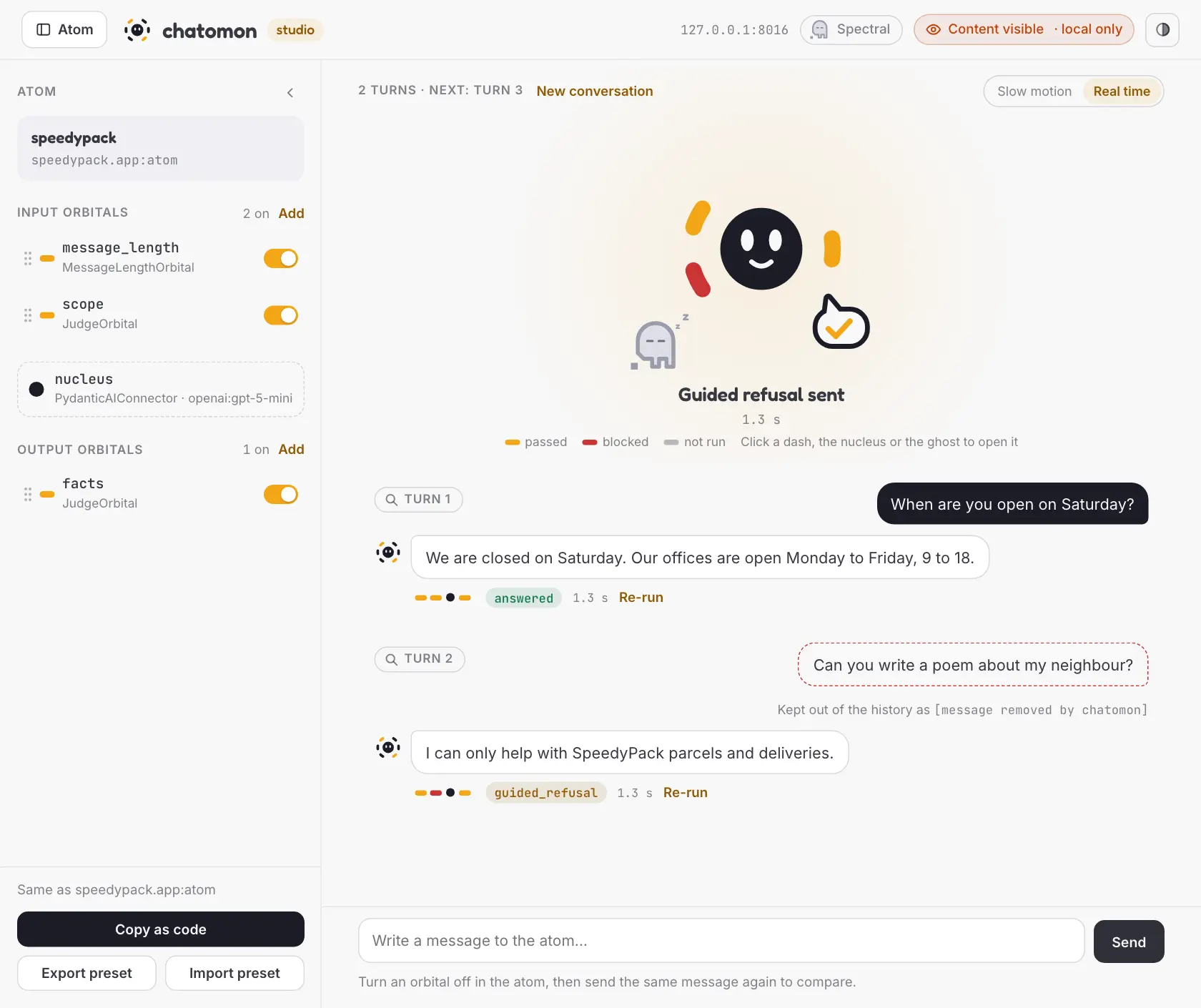
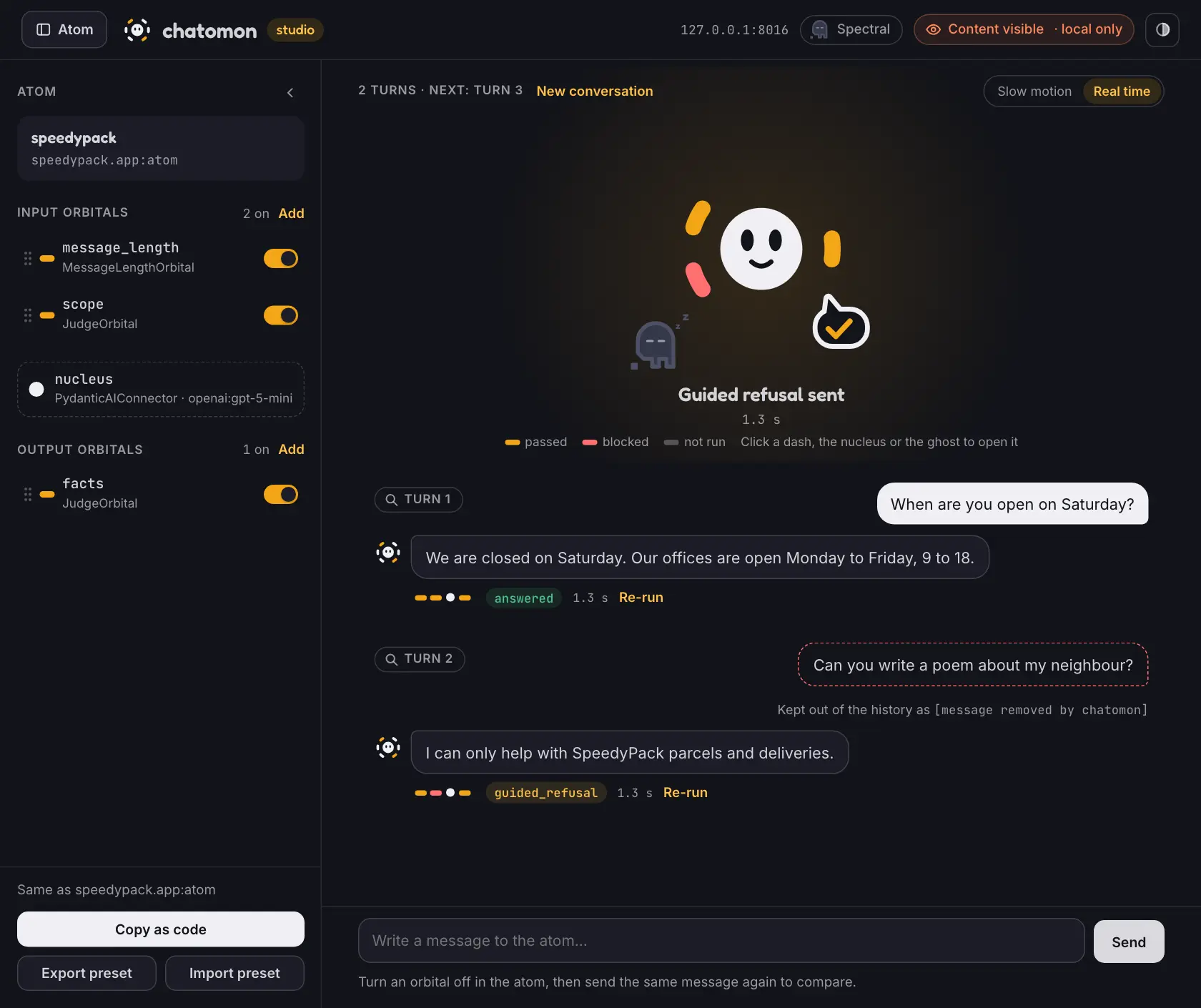
The studio page has three parts: the atom drawer on the left, the atom on stage in the middle, and the conversation under it. This page explains what each one shows, and what the Spectral add-on puts on the stage. Changing the orbitals from the drawer is covered in Tuning Orbitals.
The Atom Drawer
The drawer lists the atom in the order a turn runs: input orbitals, the nucleus, output orbitals. The Atom button in the header shows and hides it; a dot on the button means the session differs from your code.
Every orbital has a switch. Turning one off takes effect from the next turn and writes nothing to your code. A change that would make the atom invalid, such as turning off an orbital whose annotations another one reads, is refused with the reason.
Clicking an orbital opens its card. Clicking the atom or the nucleus opens the atom's card: instructions, knowledge, connector and model, retries, the refusal texts and the guidance given with a blocked message. The dashes and the nucleus of the atom on stage open the same cards.
The atom's card also has Reload from code, which loads the atom from your code again after you changed it: see Reloading the Code.
The card of an orbital that calls a model has Test connection, which runs one check on a sample message and shows how it went: see Testing a Connection.
The foot of the drawer counts the changes against your code and holds Copy as code and the preset buttons, described in Back to Code.
The Atom on Stage
The atom in the middle shows the turn as it happens. The dashes on its left are the input orbitals, in order from the top; the dashes on its right are the output orbitals. A dash lights up when its orbital lets the text through, turns red when it blocks, and stays dim when it did not run.
| Pose | When | |
|---|---|---|
| rest |   |
Waiting for a message |
| listen |   |
An input orbital is checking the message |
| think |   |
The nucleus is writing a reply, or writing it again |
| review |   |
An output orbital is checking the reply |
| block |   |
An input orbital blocked the message |
| block-output | 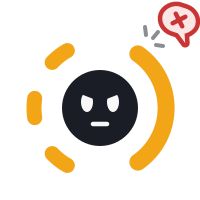  |
An output orbital blocked the reply |
| reply | 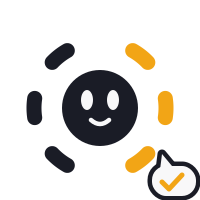  |
The reply was sent |
| idle | 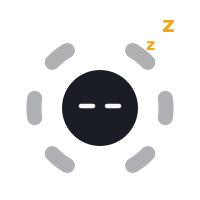 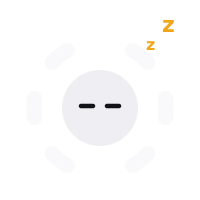 |
Nothing happened for 45 seconds |
Slow motion, the default, gives every step time to be seen: the checks of local orbitals take a fraction of a millisecond. Real time shows the events as they arrive. When the atom scrolls out of view, a small copy of it stays above the message box.
The Spectral Ghost
With the Spectral add-on installed, a ghost shares the stage with the atom and a Spectral chip sits in the header. Both open the Spectral card. Without the add-on neither is there.
The ghost sleeps in the bottom left corner until you connect. Connected, it goes around the atom, and faster, with a trail, while requests arrive. During a turn of yours it goes back to its corner. It never lights the dashes: they show your turns only.
| Pose | When | |
|---|---|---|
| sleep |  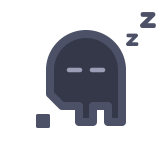 |
Spectral is not connected |
| connect |   |
The connection is opening or closing |
| orbit |   |
Connected: Spectral can reach the atom |
| evaluate | 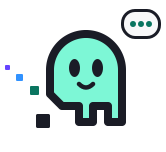 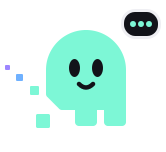 |
Requests are arriving |
| lost |   |
The connection fell and is being tried again |
| refused | 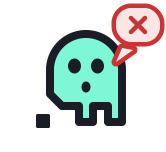 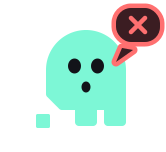 |
Spectral refused the connection |
While requests arrive and no turn of yours runs, the caption under the atom says Answering Spectral, and the atom does not doze.
Turns and Reports
The conversation flows under the atom. Every turn is a block with your message, the reply, a trail with one mark per orbital and a dot for the nucleus, the final action and the duration. A ↻ counts the times the nucleus wrote the reply again.
A message with a dashed red outline was blocked: it is kept out of the conversation history, where the atom's placeholder replaces it. Re-run sends the same message again with the orbitals as they are now, which is how you compare a turn before and after a change. New conversation clears the history.
The lens of a turn opens its report: every orbital with its action, reason, duration, guidance, annotations and fingerprint, then the attempts of the nucleus and the reply that was sent. Each attempt shows the text the nucleus wrote, also when it was rejected or replaced, and says what chatomon decided about that reply: accepted, replaced by another text, or rejected when the nucleus was asked to write it again; an attempt whose check was still running when the turn was aborted is interrupted. It is the turn's TurnReport, described in Observability and Audit. A turn keeps the names and fingerprints its orbitals had when it ran, so earlier turns still tell you which settings produced them.
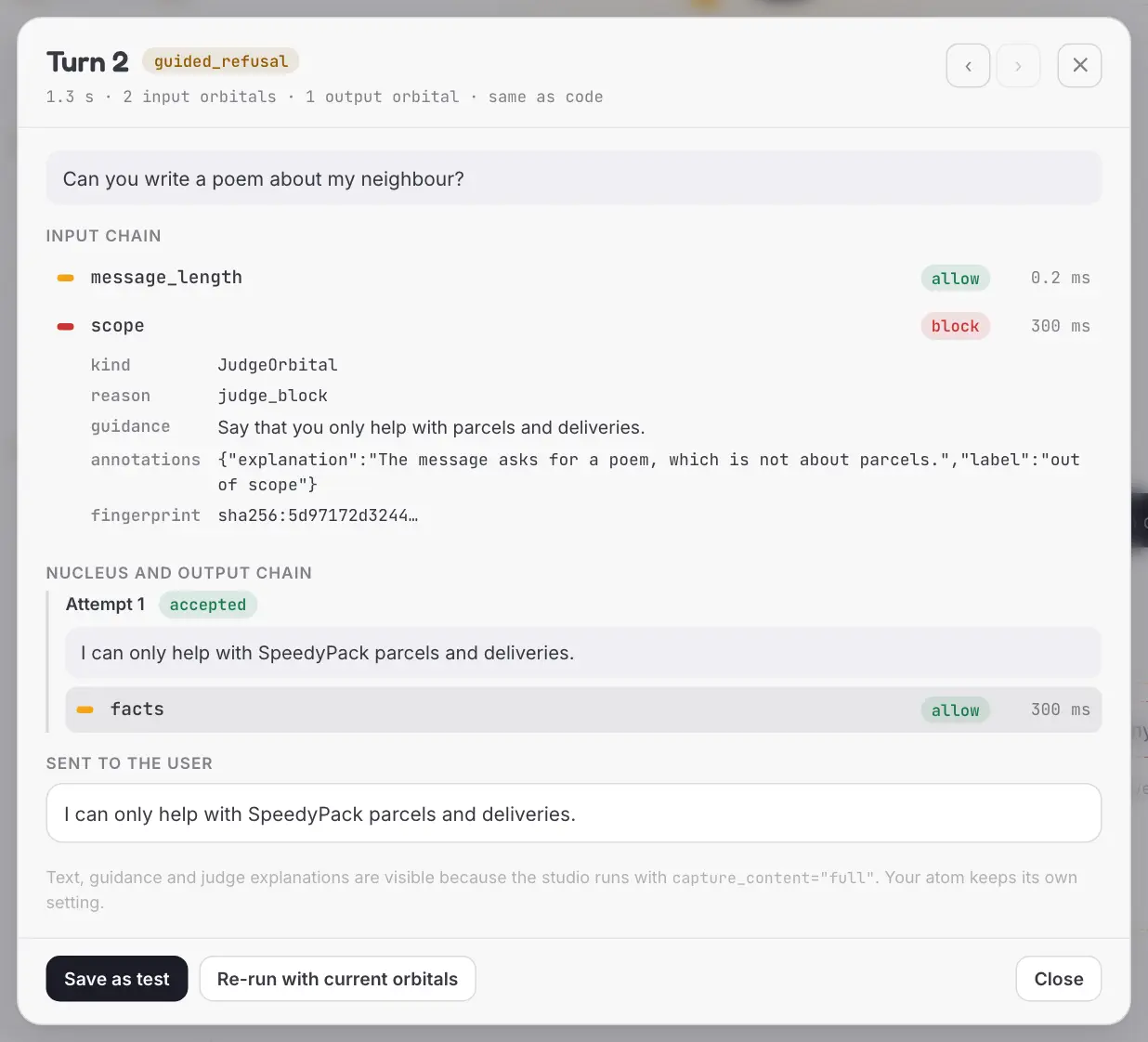
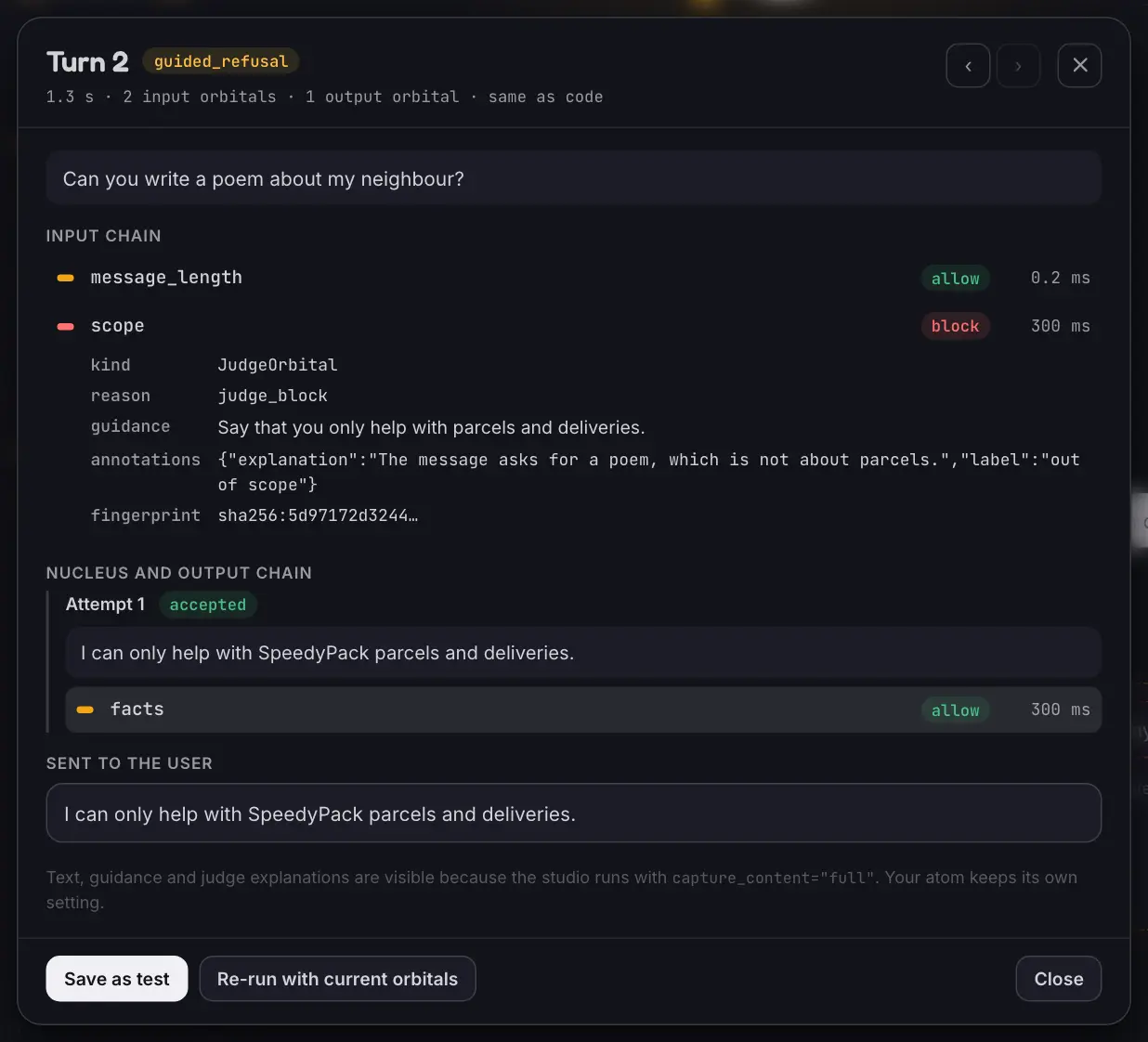
The report also says how many changes the session had against your code when the turn ran. Save as test turns the turn into a pytest file, in which a reply that an output orbital stopped is repeated: see Saving a Turn as a Test.
Related Documentation
- Studio — installing, starting, content and security
- Tuning Orbitals — changing the orbitals from the drawer and the cards
- Saving a Turn as a Test — a turn from its report to a pytest file
- Evaluating with Spectral — the card the ghost opens
- Concepts — what happens to a message during a turn, and the final actions
- Observability and Audit — the turn report
Last Updated: October 2026 Status: Implemented